Just a simple AppleScript to batch rename files sequentially
Because I just couldn’t find ANYTHING close to this on the interwebz, I had to make my own simple AppleScript to easily batch rename multiple files sequentially.

Various things related to Apple’s macOS (formerly known as OS X or Mac OS X).

Because I just couldn’t find ANYTHING close to this on the interwebz, I had to make my own simple AppleScript to easily batch rename multiple files sequentially.

This is an adaption of my previously posted Automator Service to add Text Selections as new Tasks to Wunderlist.app – but this time I adjusted the Automator Service to do the same for Apple’s Reminders.app!

In OS X it is fairly simple to create a virtual disk image of the type “ISO” by using built-in UNIX tools and the Terminal. We are going to use the “dd” UNIX tool to copy a whole CD/DVD into a new ISO disk image file.

It’s still one of the easiest ways to get someone’s data when you get your hands on a USB stick. It’s quite interesting, what you find on these portable drives – whether it’s from a friend or a business contact. There are serveral ways to protect yourself better by encrypting and password locking the drives. Sometimes there’s a preinstalled software on the USB drive available for that – but mostly not. I have a short how-to here showing how you can achieve this really easy using standard tools on your Mac!

Automator itself is a really powerful tool for automating recurring tasks in OS X. Unfortunately it’s still not really something regular Mac users are using for making tasks and working in OS X more efficient. The following example will show you, how to directly open the Wikipedia page containing the List of Episodes of a given TV show. Think outside the box in order to adapt this for many other uses.

OS X nearly drove me nuts today, as it suddenly stopped accepting my Username/Password combination to login.
Mit folgendem Befehl im Terminal.app lässt sich die kurze Verzögerung entfernen, bevor das ausgeblendete Dock angezeigt wird: defaults write com.apple.Dock autohide-delay -float 0 && killall Dock
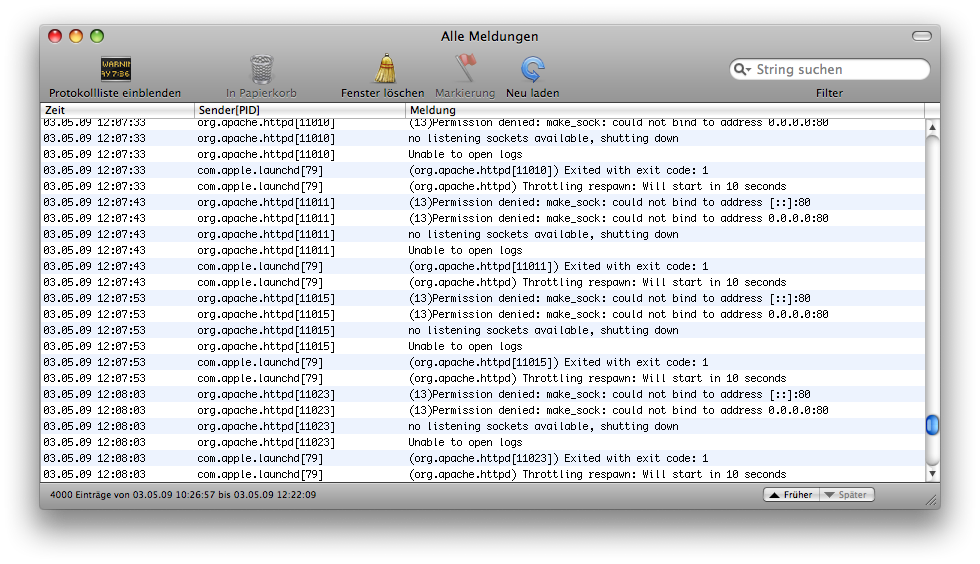
In case you have a USB mouse connected to your Mac and it’s not responding, check the Console.app in Applications > Utilities for USB related error entries. If you find the following text in the error log, it might simply… Continue reading » “OS X: USB Mouse not responding”
I noticed recently, that I had a grayed out item named “Unknown” in my login items list in OS X Lion, even indicated with a warning icon next to it. But I couldn’t remove this – obviously missing – item from… Continue reading » “OS X: How-to remove unknown Login Items”

I started using the fantastic app “Wunderlist” for my personal Task Management on the Mac, of course with synchronisation to iPhone and the web. Thanks to a Blog post from James O’Donnell on Scribd, I got my hands quickly on the required AppleScript. However, I didn’t like the fact that he made the script ask for a new User Input which will be created as new task – rather than just taking the currently selected text. So I adjusted his AppleScript code and put it into an Automator Service workflow, which you can download here.